Managing Your Organization
YOUR ORGANIZATION
Every odrive account includes an Organization (Org) that is automatically created when you sign up. Your Org allows you to manage members, subscriptions, and billing from one place.
Org management is available to Org admins through four pages in the web client. To access them, click on Account in the top-right corner and select the desired page from the dropdown under your Org's heading.
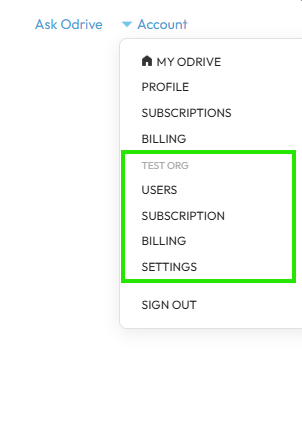
- Users — Invite, remove, and manage Org members
- Subscription — View plan details, subscribe, and manage renewal
- Billing — View billing history and update payment method
- Settings — View and edit your Org name, description, and member count
Admin access required
Only Org admins can access the Org management pages. If you are not an admin, contact your Org admin to make changes to your Organization's subscription or members.
ACCEPT AN ORG INVITATION
An email will be sent to addresses specified when inviting members. The invitation email will contain a link to join the Org.
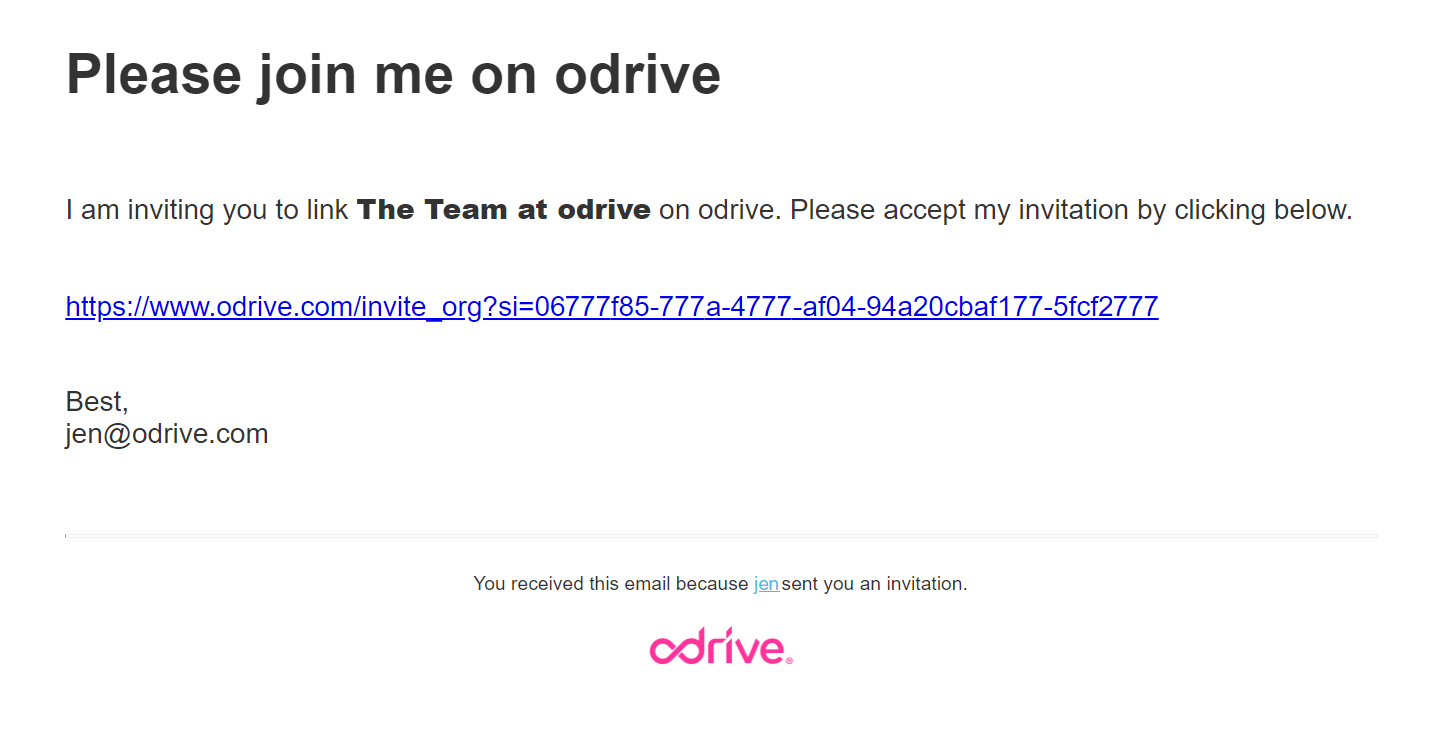
When the user clicks on the link in the email, they will be asked to confirm linking the Org to their account.
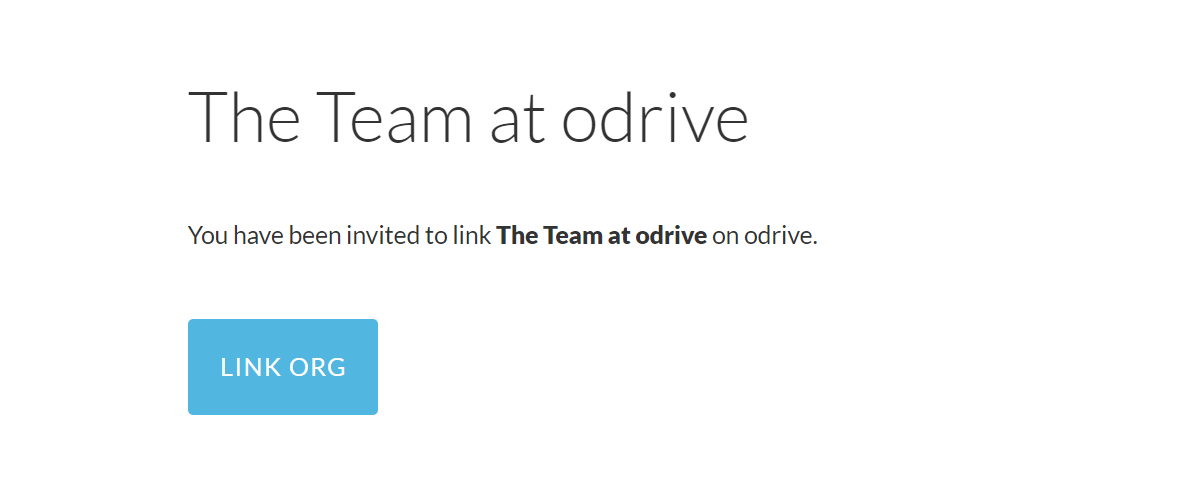
Confirmation to join Org (signed in already)
If the user is signed in, the button will read LINK ORG, and they should confirm that they are signed in to odrive as the user they want to join the Org.
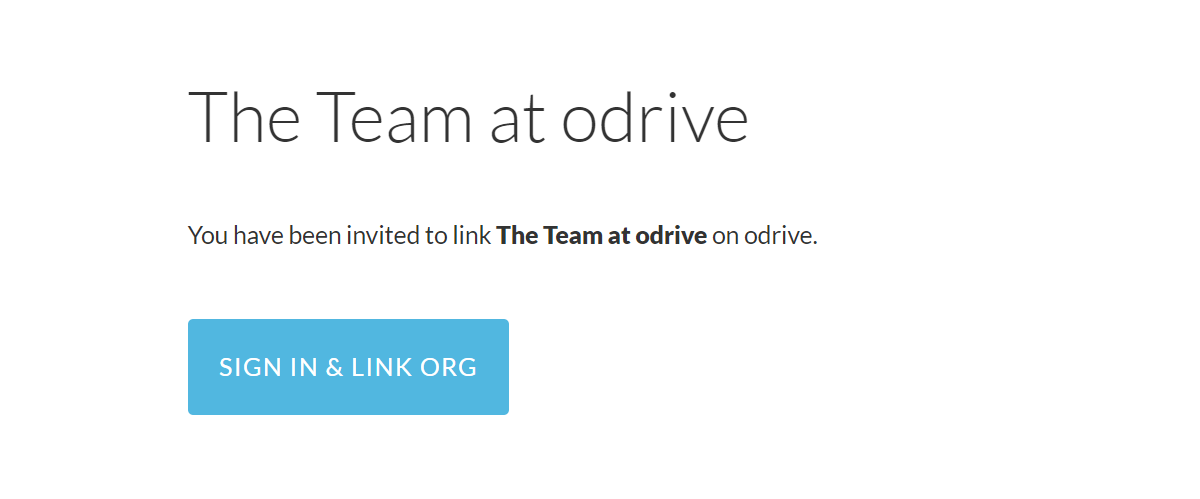
Confirmation to join Org (not signed in yet)
The confirmation screen will look slightly different if the user is not signed in to odrive currently. They'll be able to sign in with the user they want to join the Org with after pushing the SIGN IN & LINK ORG button.
Accepting an invite when I haven't signed up for odrive yet
If the recipient doesn't have an odrive account yet, they will see the same dialog as for Confirmation to join Org (not signed in yet) immediately above when they click on the link in the invite email.
The user can click on the SIGN IN & LINK ORG button anyway to create a new user through the sign in flow. When they finish authenticating with their chosen sign-in provider, odrive will detect that their user doesn't exist and display a standard confirmation message:
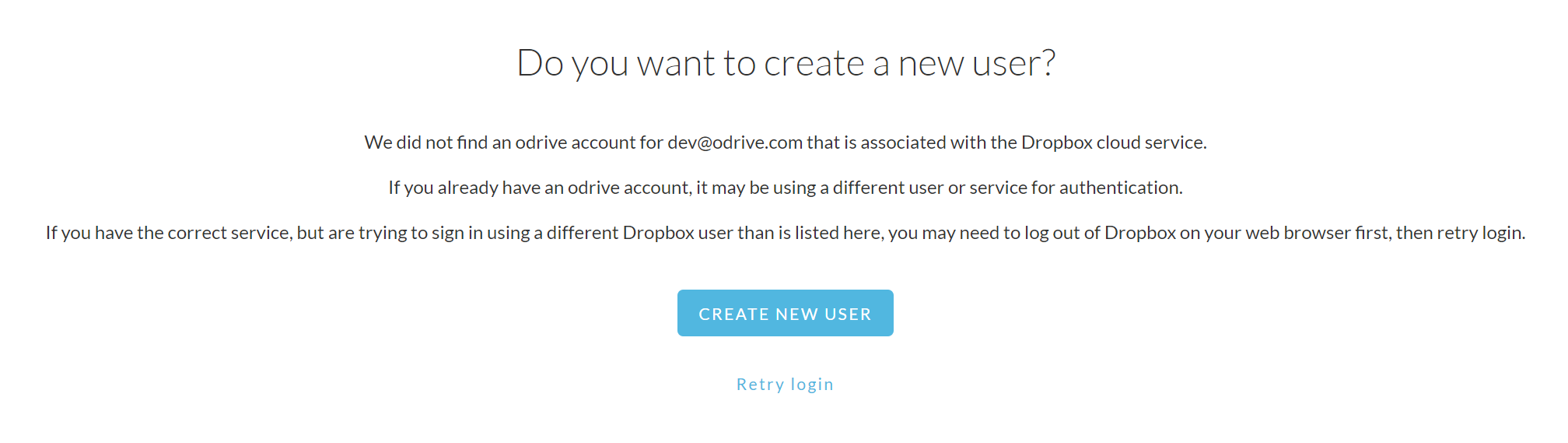
The user can select CREATE NEW USER to proceed, which will allow them to link the Org to the new user once user creation is complete.
MANAGE ORG MEMBERS
Invite new members
On the Users page, you can invite new members to your Org by specifying their email addresses.
During your trial period, you can add as many members as you'd like with no seat limits. Once you have a paid subscription, the number of members is limited by the seats in your plan. If you try to invite more members than your plan allows, you will see an error message indicating how many additional seats you can add.
If you need to invite more members than your current plan allows, you'll need to purchase additional seats first.
Delete an Org membership
To remove an existing Org member (whether or not they have accepted the invitation yet), find the member on the Users page and use the available options to remove them.
Promote a member to an Admin of the Org
Org admins can see and manage your Org through the Org management pages. Org admins are equal in scope, so be sure to only promote someone that you trust since they can demote you from Admin access at any time.
To promote a user, find them on the Users page and use the available options to change their role.
What can an Org admin do?
An Org admin has access to the four Org management pages, giving them these capabilities:
- Users — Manage the Org member list, invite new members, and remove existing ones.
- Subscription — View plan details, subscribe, manage renewal, and change seat count.
- Billing — View past charges and invoices, and update payment method.
- Settings — Rename the Org and update its description.
MANAGE ORG SUBSCRIPTION
View subscription details
The Subscription page shows your Org's current plan, number of seats, member count, and renewal or expiration dates.
Subscribing to a plan
When your trial ends or when you're ready to subscribe, go to the Subscription page and select the option to purchase. You can choose between:
- Annual plan — $200/user/year
- Monthly plan — $20/user/month
You must subscribe for all users in your Org. If there are users you do not wish to include, remove them from the Org first.
Trying out odrive with your team
For first time purchases, you can cancel anytime within 30 days for a full refund. If your subscription qualifies, you will see a "30 day refund" option on the Subscription page. Otherwise, the option will be to "Cancel autorenewal".
All new users receive a 30-day free trial with full access to all features when they sign up.
Changing Subscription Seat Count
You can change the number of paid seats in your subscription from the Subscription page. Find the option to change your current seat count and select it.
An explanation dialog will describe how you will be billed for the change.
Enter the desired number of users to see the updated pricing.
Billing Charges for Changing Subscription Seat Count
Changes to subscription seats are always handled as follows:
- Your subscription renewal anniversary date remains the same
- Your account is issued a prorated credit for the remaining time between now and your renewal date for the original number of seats.
- Your account is charged a prorated amount for the remaining time between now and your renewal date for the new number of seats.
Thus, if you reduce the number of seats, you will be left with a net subscription credit on the account. If you increase the number of seats, your credit card will be charged a net prorated amount for the change made.
Example of Subscription Seat Changes
Let's say you purchased your Org subscription on June 1, 2024 with 5 users at $200/yr per user. Your credit card will be charged $1,000, and your next renewal date will therefore be June 1, 2025.
Three months later on September 1, 2024, you decide to upgrade to 7 users.
First, you will receive a prorated credit for the original subscription of 5 users against the time remaining before your renewal date (9 months remaining). So you get 0.75 x $1,000 = $750 credit.
Next, you will be charged a prorated amount for the new subscription of 7 users against the time remaining before your renewal date (9 months remaining). So you will be charged 0.75 x $1,400 = $1,050 charged.
Net Effect
Your account has a $750 credit, so the net amount that will be charged to your credit card at this time will be $1,050 - $750 = $300 net amount charged.
When your renewal date comes around on June 1, 2025, your subscription will renew for $1,400 to cover the subscription until the next renewal date of June 1, 2026.
You can check your billing history afterwards or look at your billing invoices to make sure the prorated transactions make sense to you and are what you were expecting.
Why is the billing rate different from my business subscription contract?
Business subscriptions are billed separately according to your specific agreed contract terms. When you make changes to your Org seats here, we detect the change and process the seat change immediately so that you can begin inviting your users without having to wait for the billing portion to be settled.
For billing processing, a separate invoice will be issued with the correct contract values. Unfortunately, the webapp is disconnected from our business subscription invoicing system so we are unable to present the specific terms for your specific contract here when you are making your changes.
Refer to your signed contract for the proper billing rate details. Note that the changes made will be prorated to your subscription contract. So for an upgrade, you will be billed on a prorated basis per additional user. For downgrades, prorated account credit will be issued which will automatically apply to the next transaction (e.g. a future upgrade or at renewal time).
For major changes to your user count, you can always contact sales@odrive.com to see if we can help with any of your changing needs. Also, if you ever have any billing issues or notice that any final charges don't match, you can contact us at support.odrive.com and we will resolve any issues as painlessly as possible.
Canceling for a refund (first time purchases within 30 days)
If your subscription is still within the refund period, you will see a "30 day refund" option on the Subscription page.
Select the refund option to end your subscription and get a full refund (first time purchases only).
Canceling autorenewal
If your account is outside of the 30-day refund window, you will instead see an option to cancel automatic renewal of your subscription. After the subscription reaches the end of its current term, the subscription will expire.
MANAGE ORG BILLING
View billing history
The Billing page shows your Org's billing history.
View an invoice
You can click on a specific invoice to view the details of a charge.
Change credit card details
You can update the credit card used for payment on the Billing page.
Invoice billing
Some organizations are set up with invoice billing, which is managed by our sales team. If your Org is on invoice billing, self-service billing actions (purchasing, refunds, payment method changes) are not available in the web interface. Contact sales@odrive.com for any billing changes.